
Accessing lecture recordings
All the essentials for getting started with lecture recordings in one place.

Discover how lecture recordings enhance your learning
The UNSW Lecture Recordings+ service enables automated capture of lectures and provides a suite of tools that promote and support active learning.
Recorded lectures give students flexible access to content and opportunities for self-paced review. This page outlines everything you need to get started, explore key features, and make the most of your recordings.
See also
Supporting engaged learning at UNSW
For over a decade, UNSW has supported lecture recording and sharing through Lecture Recordings+ (Echo360/LR+), now delivered via the cloud-based Echo360 Active Learning Platform. This platform provides:
- High-quality audio and video playback
- Reliable access to recordings
- Interactive tools to support participation
- Learning analytics to enhance teaching and study
The platform supports both traditional lectures and modern approaches such as flipped classrooms and blended learning.
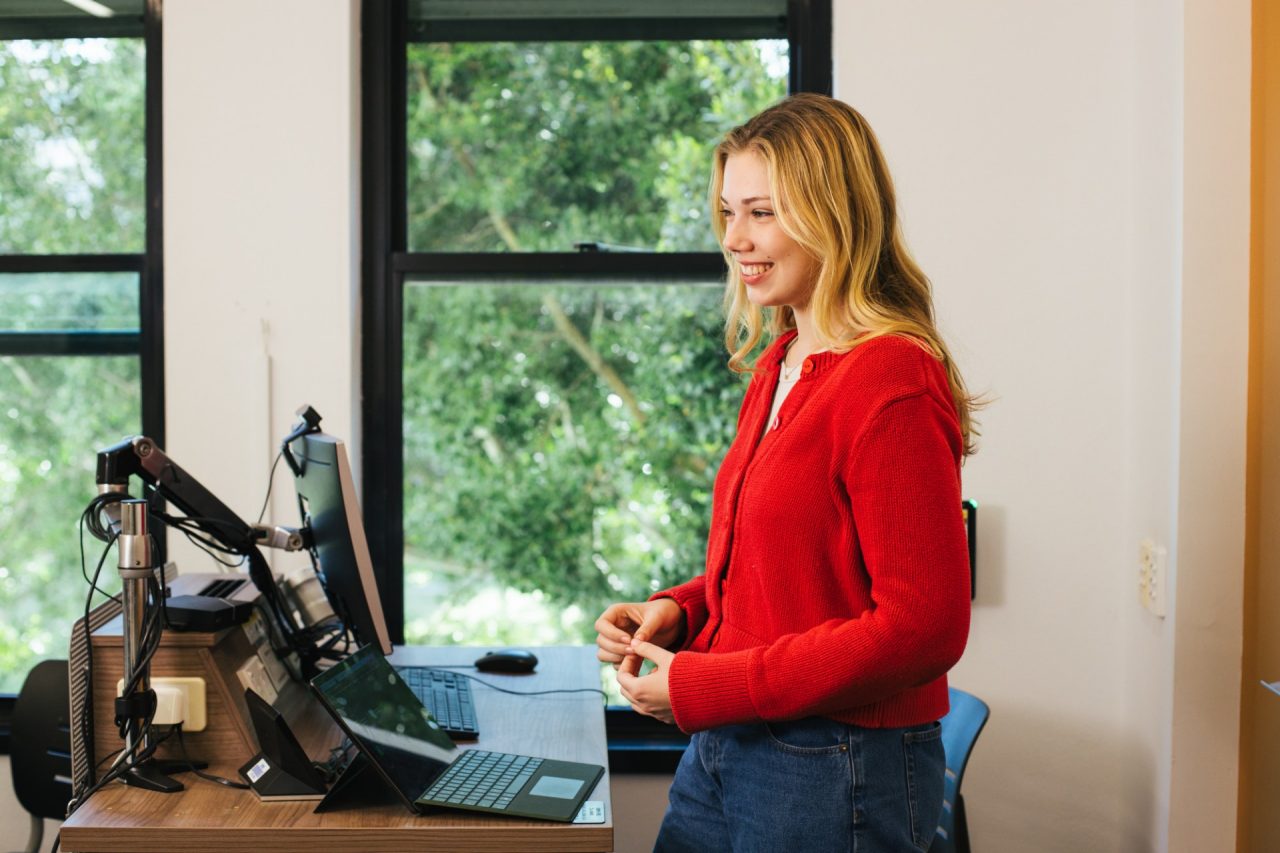
UNSW Lecture Recordings+, powered by Echo360 (also referred to as LR+), allows students to join lectures live, access recordings online after the session, or download media for offline study. The type of content available may vary depending on the lecture room equipment and the recording settings chosen by your lecturer.
Most large teaching spaces are Echo360/LR+ enabled. You can confirm whether a venue is supported by viewing the list of UNSW Lecture Recordings enabled venues.
- Echo360/LR+ schedule
- Content recorded
- Supported browsers and operating systems
All centrally timetabled lectures and seminars (except for the Faculties of Law & Justice and Medicine & Health) in Echo360 enabled venues are recorded automatically during Weeks 1-10 every term (Weeks 1-12 at UNSW Canberra). You will find links to your lecture recordings on your Moodle course site unless your instructor opts out.
Recordings begin five minutes after the schedule start and finish on the hour, for example 1:05pm-2:00pm.
Note: Tutorials, laboratories and other activities are not recorded.
- Audio: Captured through the podium or lapel microphones
- Visuals: Videos displayed in the projector feed. If the venue has a camera installed, the video camera feed will also be recorded.
Note: To avoid unintended capture, students should refrain from private discussions near the podium at these times. Group discussions during your lecture may not be recorded properly as they occur away from the podium.
Managing lecture recordings
Lecture recordings are accessed via Moodle, with the link location determined by the instructor. Lecturers may provide either a single link covering all lecture slots or individual links for each recording. Recordings are typically ready within a few hours, although timing can vary with lecture length and system processing.
Note: Access to recordings is determined by the instructor. They may opt out of recording, restrict availability to certain students, delay release until exams, or remove viewing and download options at any time.
Details on accessing, downloading, and participating in lectures are outlined below.
Important
Always confirm whether your lecturer is sharing the Echo recordings and when the link will be available in Moodle.
- View lecture recordings
- Download lecture recordings
- Participate in lectures
Steps to access and view recordings
- Log in to Moodle and open your course
- Click on the Echo360/UNSW Lecture Recording+ link provided by your lecturer
- In the class list, click on the lecture title (class name) that corresponds with the past lecture you want to view
Icon Meaning 
The recording is available. 
The slides for the lecture are available.
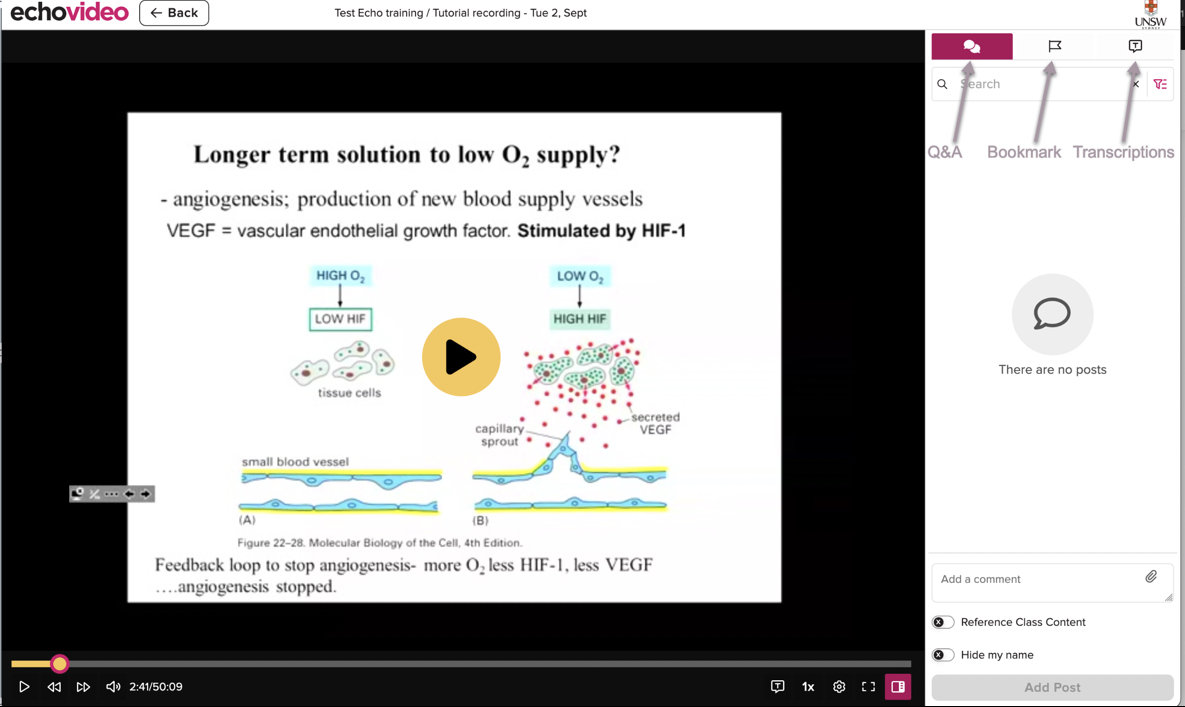
Audio and video copies of lectures are available for download unless the instructor has disabled this option. Full Rich Media Playback requires a minimum bandwidth of 144 Kbps. If your internet connection is slower, it is recommended that you download the audio or video recording instead.
For further details, see Data Rate and Usage.
Downloadable media from Echo360
Audio or video copies of the lecture are available for download unless the instructor has disabled this option.
Lecture recordings can be downloaded in several formats:
- Full Rich Media Playback: A synchronised presentation combining audio, video, and lecture visuals. This format is only available online through your web browser by clicking the lecture recording when it becomes available (not downloadable).
- Lecture Audio (MP3): An audio-only file that can be downloaded and played on any MP3 player, mobile device, tablet, or most computer audio applications.
- Lecture Video (MP4): A video file containing audio and screen visuals, which can be downloaded and played on iPads, iPods, mobile devices that support video, and most computer video applications.
If your computer does not already have suitable software installed, VLC Player is recommended as a free option for Windows and macOS, as it supports a wide range of file types.
Steps to download lecture recordings and slides
- In your Moodle course, go to the lecture recording you want to download and click the Play icon.
- You can choose to download the video or audio in different quality levels.
- From the drop-down menu, select Download Original.
- To download lecture slides, click the Presentation icon.
Note: Changes made by the lecturer to the original presentation such as adding interactive question slides are not part of the download file. Question slides can only be reviewed online inside the Echo360/LR+ classrooms.
Students are encouraged to bring a personal device such as a laptop or tablet to all lectures. Doing so will enable you to:
- Access and view lecture slides in real time
- Indicate areas of confusion for later review
- Respond to interactive questions, including multiple-choice activities
- Contribute to the Q&A forum by asking or answering questions
- Take structured digital notes
Once you arrive at the venue, you will need to:
- Connect your device to the venue wireless network
- Open your Moodle course, and click on the UNSW Lecture Recordings+ link
- Open the appropriate class
Do not assume that your lecturer will respond to Q&A posts or confusion flags in real time or immediately after class. Addressing these during a lecture can disrupt the learning experience. Instead, use these tools to answer your peers’ questions and like the most valuable ones so they can be highlighted for lecturer response after class.
Note: The author of anonymous posts is hidden from other students, but they are not hidden from the instructor. The instructor can see who posts anonymously.
Additional Echo360/LR+ features
Echo360/LR+ offers a range of features designed to make your learning more interactive and accessible. From note-taking and discussion tools to bookmarks and live streaming, these features help you engage with course content during and after class.
-
You can view live stream classes in real-time by following the below:
1. Access the Echo360 live stream via your Moodle course. The live stream has a red broadcast icon next to the class name.

2. Click on the class to view the live stream
3. Select your location (In Person' or 'Remotely') from the dropdown menu, then click 'Join Session'.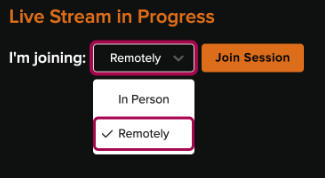
Note:
- It is highly recommended that you live stream a lecture using desktop or laptop computer.
- For the best experience, Chrome or Firefox browsers are recommended.
- Questions and Comments can be posted anonymously, so your name will not be visible to fellow students but visible to the instructor.
For more information, please see Viewing Live Streaming Classes.
Echo360/LR+ FAQs
If you can’t access UNSW Lecture Recordings+ or something isn’t working as expected, the issue may be service-wide, Wi-Fi related, or specific to your device. Here’s how to troubleshoot. For more detailed guides and support, visit the Echo360 online knowledge base.
-
If both staff and students can’t access Lecture Recordings+ (or the service isn’t working properly), it’s likely a system-wide problem.
Contact the IT Service Centre:
- Phone: (02) 9385 1333
- Email: itservicecentre@unsw.edu.au
The IT Service Centre will investigate and alert the TELT Support team if needed.
-
Lecture Recordings+ requires a stable internet connection to download slides, answer interactive questions, and save notes.
- At the start of lectures, many students connect to Uniwide at once. This may cause temporary slowdowns, but it usually resolves in a few minutes.
- If the problem continues, contact the IT Service Centre for help.
-
Sometimes the issue is with your own laptop, tablet, or phone. Common causes include:
- Corrupted browser cache.
- Security software blocking access.
- Other device settings.
What to do:
- Try a different web browser as a quick fix.
- After the lecture, call the IT Service Centre on (02) 9385 1333 for basic troubleshooting.
- If it still doesn’t work, you may need help from an external IT professional.
-
If the link is missing, it may be because:
- Lectures are not held in an Echo-enabled venue.
- Your instructor has opted out of recordings or chosen not to make them available.
- The link hasn’t been added to your Moodle course yet.
👉 If you’re unsure, check with your course convenor or instructor to confirm if LR+ will be used in your course.
-
If you see the Echo360 link in Moodle but the content won’t play or download:
- Clear your browser cache and make sure your browser is up to date.
- Try another browser as a quick workaround.
👉 If the issue continues, contact the IT Service Centre with these details:
- your course ID
- the error message
- your browser and version
Collaborate Ultra is a virtual classroom tool where you can join live sessions, interact with your instructor and classmates, and watch recordings of previous sessions.
-
Find Collaborate Ultra in your course:
- Log in to Moodle and navigate to your course
- Look for the Collaborate Ultra link. It might be under a section like "Live Sessions" or "Online Classes"
- Click the link to open the Collaborate Ultra page.
-
- Locate the session
- On the Collaborate Ultra page, you'll see a list of available sessions
- Find the session you want to join. Sessions might have names like “online lecture day 1”
- Join the session
- Click on the session name or the Join Session button
- If prompted, allow access to your microphone and camera so you can participate
- Locate the session
-
- Microphone & Camera:
Use these to speak and share video. You can turn them on/off using the controls at the bottom of the screen - Raise Hand:
Click the hand icon if you want to ask a question or contribute to the discussion - Chat:
Use the chat panel to type messages. You can send public messages or private messages to your instructor - Whiteboard & Content Sharing:
Your instructor may share a whiteboard, slides, or other content. Follow along on your screen - Breakout Rooms:
If assigned to a breakout room, click "Join" to collaborate with your group.
- Microphone & Camera:
-
- Audio/Video Issues: Click the "Settings" icon (gear icon) to check your audio and video setup
- Connection Issues: Refresh your browser or try switching to another browser like Chrome or Firefox
If problems continue, reach out to your instructor through chat or email.
-
- Locate recordings
- Go back to the Collaborate Ultra page on Moodle
- Click the Menu Icon (three horizontal lines) in the top left corner
- Select Recordings from the menu
- Watch a recording
- Find the recording you want to view. Sessions are typically labelled by date or topic
- Click on the recording to start watching.
- Locate recordings
💡Tips for a great experience
- Use Chrome or Firefox:
Recommended for best performance - Check your internet:
A stable connection avoids disruptions - Join early:
Test your microphone and camera before the session.
Have a question?
Contact us for advice on all things UNSW, including faculty-specific questions, essential services, support and development. We’re here to help.